Connecting OVOC Server to Network on VMware
After installation, the OVOC server is assigned a default IP address that will most likely be inaccessible from the customer's network. This address is assigned to the first virtual network interface card connected to the 'trusted' virtual network switch during the OVOC server installation. You need to change this IP address to suit your IP addressing scheme.
|
➢
|
To connect to the OVOC server: |
|
1.
|
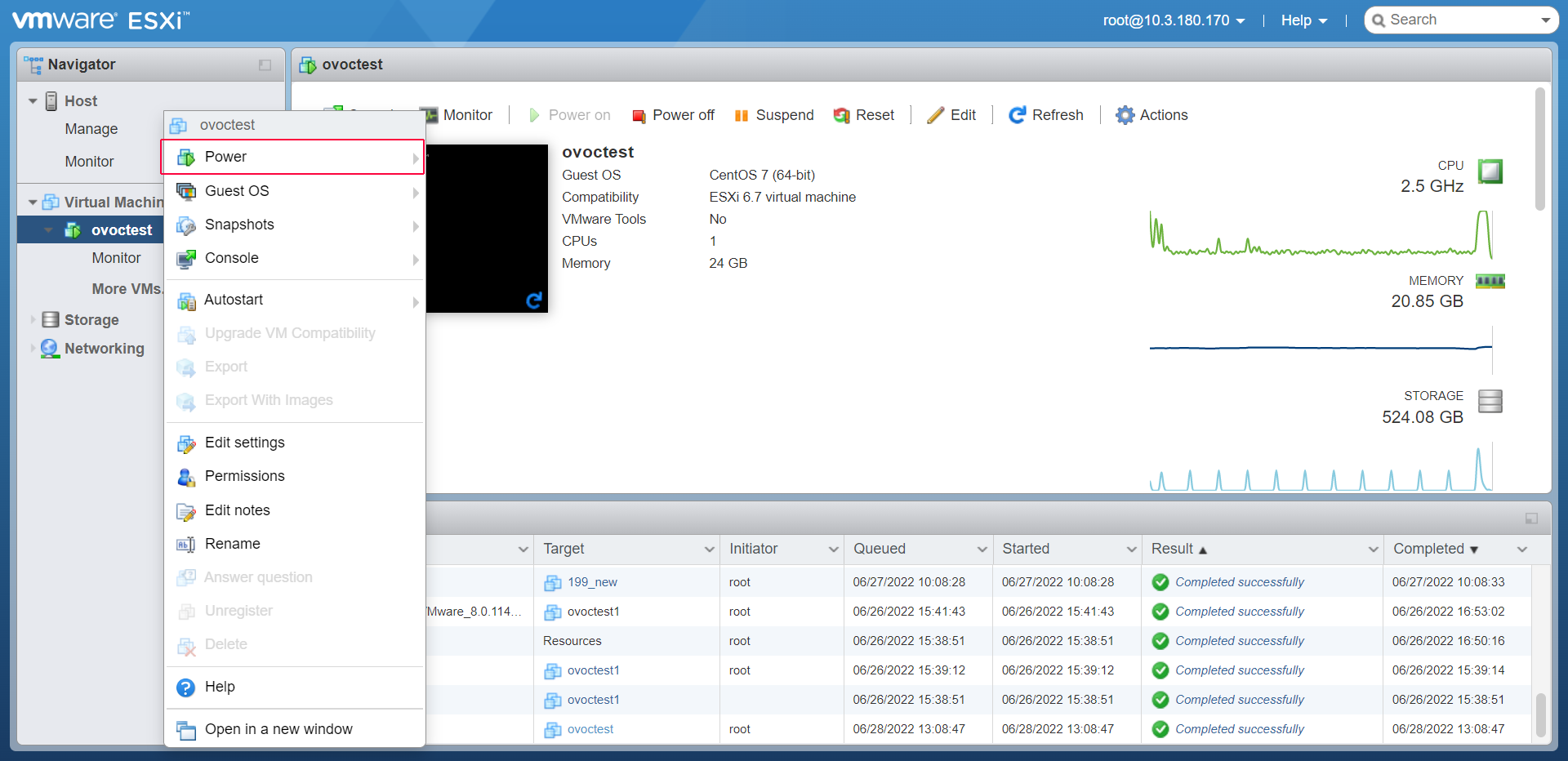
Power on the machine; in the vCenter tree, right-click the AudioCodes One Voice Operations Center node (vOC) and in the drop-down menu, choose Power > Power On. Upon the initial boot up after reconfiguring the disk space, the internal mechanism configures the server installation accordingly to version specifications (Hardware and Software Specifications). |
Power On
|
2.
|
Wait until the boot process has completed, and then connect the running server through the vSphere client console. |
|
3.
|
Login into the OVOC server by SSH, as ‘acems’ user and enter acems password. |
|
4.
|
Switch to 'root' user and provide root password (default password is root): |
su - root
|
5.
|
Proceed to the network configuration using the OVOC Server Manager. |
|
6.
|
Type the following command and press Enter. |
# OvocServerManager
|
7.
|
Verify that all processes are up and running (Viewing Process Statuses), configuration and data has been restored, and that you can login to OVOC Web client. |
|
8.
|
Set the OVOC server network IP address to suit your IP addressing scheme (Server IP Address). |
|
9.
|
Perform other configuration actions as required using the OVOC Server Manager (Getting Started ). |